Cal.com integration: let the Nodale agent book meetings
In short
Connect Cal.com to your Nodale workspace with an API key, then create a meeting booking outcome on one of your event types. During the conversation, the agent offers the visitor free times from that event type and books the one they pick in Cal.com.
Nodale is an AI agent turning inbound into hot leads: B2B website visitors get answers and a live demo, 24/7 in 50+ languages, and share their intent, use case and budget, so companies convert more of the traffic they already pay for.
This page is for the admin of a Nodale workspace who connects Cal.com.
Install the integration
You need to be an admin of your Nodale workspace, and a Cal.com API key.
- In Cal.com, create an API key.
- In Nodale, open Settings, then Integrations, and click Connect on the Cal.com card.
- Paste the key and click Connect. Cal.com checks it before Nodale saves it, then Nodale shows “Cal.com is connected.”
If Cal.com refuses the key, Nodale says “Cal.com refused this key. Check it, then try again.”
Reconnect. If Cal.com stops accepting the key (it was deleted or expired), the card says To reconnect: paste a new key with Reconnect.
Uninstall. Uninstall on the card stops the agent offering Cal.com bookings. Its booking outcomes stay, and come back when you connect Cal.com again.
What the key gives Nodale
Only Nodale uses the key, to read your event types and their free times and to book in Cal.com. Nodale asks for no specific permission: it can do what the key allows in your Cal.com account.
The event types the agent can book
Your own event types, and the round robin and collective event types of your teams. Required booking fields can be a name, an email, text or a choice; other kinds are not supported.
Cal.com receives the visitor’s name and email, their time zone, and the answers to the event type’s fields.
Let the agent book
- In Nodale, open Agents, then the Outcomes tab, and create a New outcome of type Meeting booking. Only an admin can change the outcomes.
- Pick a Meeting type, shown as “Cal.com · its name”. One outcome books one meeting type, and neither can be changed afterwards: to book another one, create another outcome.
- Under Required questions, link each question of the meeting type to an element the agent collects. The name and the email are filled in automatically. Phone questions and questions of other kinds are not supported: make them optional in Cal.com, or the outcome stays off.
- Write when to offer it, and turn the outcome on.
What the visitor sees
When the visitor has given a work email, every linked element is known and the moment fits, the agent offers up to four times, at least two hours ahead and within the next fourteen days, in the visitor’s time zone and language. In a written conversation they are buttons; by voice, the agent says two or three of them. The visitor picks one and the agent books it. If the visitor’s name is missing, the agent asks for it once.
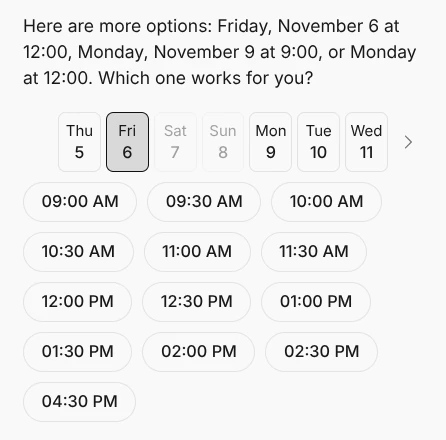
If the time was taken in the meantime, the agent says so and offers new ones. The confirmation email is the one Cal.com sends.
In Nodale, the booking shows on the lead, and the outcome counts the meetings booked over the last 30 days.
What Nodale does not do
- It does not cancel or reschedule a meeting: that happens in Cal.com.
- It sends no conversation summary into the booking.