HubSpot integration: the Nodale agent syncs your leads
In short
Connect HubSpot from the integrations page of your Nodale workspace. After each conversation, Nodale finds or creates the contact and its company, fills the HubSpot properties you mapped in the sync direction you chose, and adds one note to the contact, its company and its open deals.
Nodale is an AI agent turning inbound into hot leads: B2B website visitors get answers and a live demo, 24/7 in 50+ languages, and share their intent, use case and budget, so companies convert more of the traffic they already pay for.
This page is for the admin of a Nodale workspace who connects HubSpot. It covers what Nodale asks HubSpot for, what it writes there, and what it reads back.
Install the integration
You need to be an admin of your Nodale workspace, and a HubSpot user allowed to install apps in your portal. Other members of the workspace see the connection, but cannot change it.
- In Nodale, open Settings, then Workspace, then Integrations, and pick the HubSpot card.
- Click Connect HubSpot. HubSpot opens its consent page.
- Choose the portal to connect, read the scopes (listed below) and accept them.
- HubSpot sends you back to Nodale, which shows: “HubSpot is connected. Your portal is shown below.”
The connection card then shows the portal, when it was connected, and the last sync. One Nodale workspace connects one HubSpot portal.
When it connects, Nodale adds one hidden company property to your portal, Nodale record ID (nodale_external_id), in a property group called Nodale. It lets Nodale find the companies it created.
The scopes Nodale asks for
HubSpot shows these scopes on its consent page. All of them are required.
| Scope | What Nodale does with it |
|---|---|
oauth |
Identifies the portal you connected. |
crm.objects.contacts.read |
Finds a contact by email and reads the properties you mapped. |
crm.objects.contacts.write |
Creates and updates contacts, and links a contact to its company. |
crm.objects.companies.read |
Finds a company by domain or by its link to the contact, and reads its mapped properties. |
crm.objects.companies.write |
Creates and updates companies. |
crm.objects.deals.read |
Lists your deal pipelines and finds the contact’s open deals, to attach the note. |
crm.objects.deals.write |
Requested with the CRM scopes. Nodale creates and edits no deal. |
crm.schemas.contacts.read |
Lists the contact properties you can map. |
crm.schemas.contacts.write |
Creates a contact property when you ask for one from Nodale. |
crm.schemas.companies.read |
Lists the company properties you can map. |
crm.schemas.companies.write |
Creates a company property when you ask for one, and the Nodale record ID property. |
crm.schemas.deals.read |
Requested with the CRM scopes. Nodale maps no deal property. |
crm.schemas.deals.write |
Requested with the CRM scopes. Nodale creates no deal property. |
scheduler.meetings.meeting-link.read |
Reads your HubSpot meeting links, for the agent to book meetings in them (see below). |
Contacts and companies
When Nodale reads and writes HubSpot
- As soon as the visitor gives an email, Nodale reads the contact and its company in HubSpot, so the agent knows what your CRM already knows about them. Reading never writes anything in HubSpot.
- After each conversation, once Nodale has written its summary, it sends the lead to HubSpot. A lead is sent when it has an email, whether it is qualified or not.
- Leads from before the connection are not sent.
How Nodale finds the contact and the company
- The contact: the one Nodale already linked, otherwise the one with the same email, otherwise Nodale creates it. An archived contact is left untouched.
- The company: the contact’s primary company in HubSpot, otherwise the one Nodale already linked, otherwise the company with the same domain, otherwise Nodale creates it with that domain and links the contact to it. No company is looked up for a personal email address (Gmail, for example).
Map the fields
Open the Mapping tab of the HubSpot page. Each row sends a Nodale field to a HubSpot property.
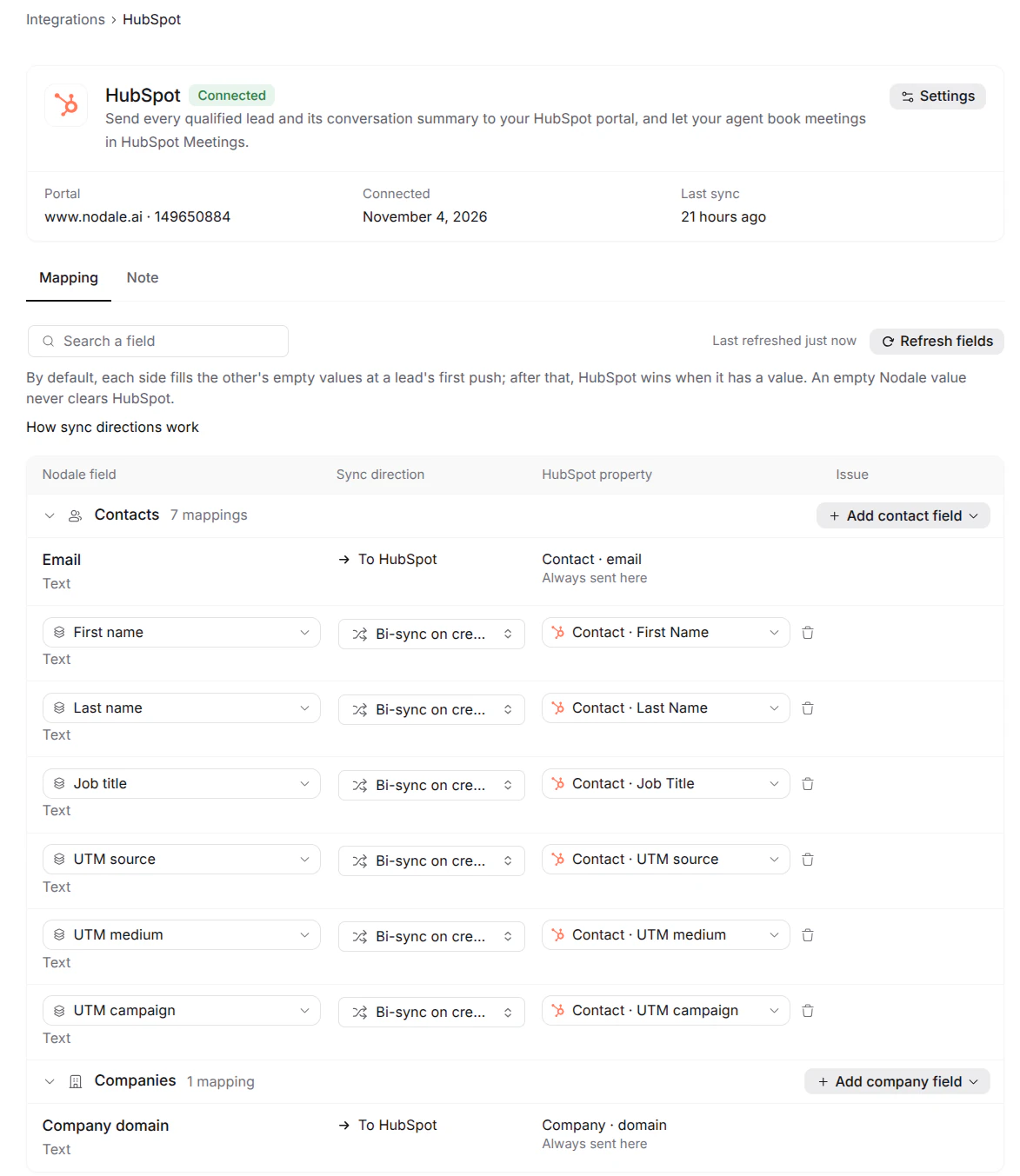
- Always sent here: the email goes to the contact’s
email, the company domain to the company’sdomain. They fill the property when it is empty. - Identity: first name, last name, job title.
- Context: UTM source, UTM medium, UTM campaign and referring site, from the lead’s first visit.
- Qualification: the elements of your agent’s qualification framework.
- Custom: the custom fields of your workspace, on the contact or on the company.
The first time, Nodale proposes a mapping: identity and context fields matched to HubSpot properties of the same name. Validate it, or start empty.
Changes stay in a draft until you click Validate. Removing a mapping deletes no Nodale field and no HubSpot property. A field in error is not sent until you fix it; everything else keeps syncing.
Create a HubSpot property. For a field with no property, choose Create a HubSpot property: when you validate, Nodale adds it to HubSpot in the Nodale group (named nodale_...) and sends the field there.
Import HubSpot properties. Add HubSpot properties to Nodale turns HubSpot properties you check into Nodale fields, mapped to them. A dropdown becomes a choice field, a checkbox a yes/no field, anything else text.
Match the values. A choice field sent to a dropdown needs each of its values matched to a HubSpot option. It is not sent until every value has one.
Choose the sync direction
Each mapped field has a sync direction. The default is Bi-sync on create, HubSpot priority on update. An empty Nodale value never clears HubSpot.
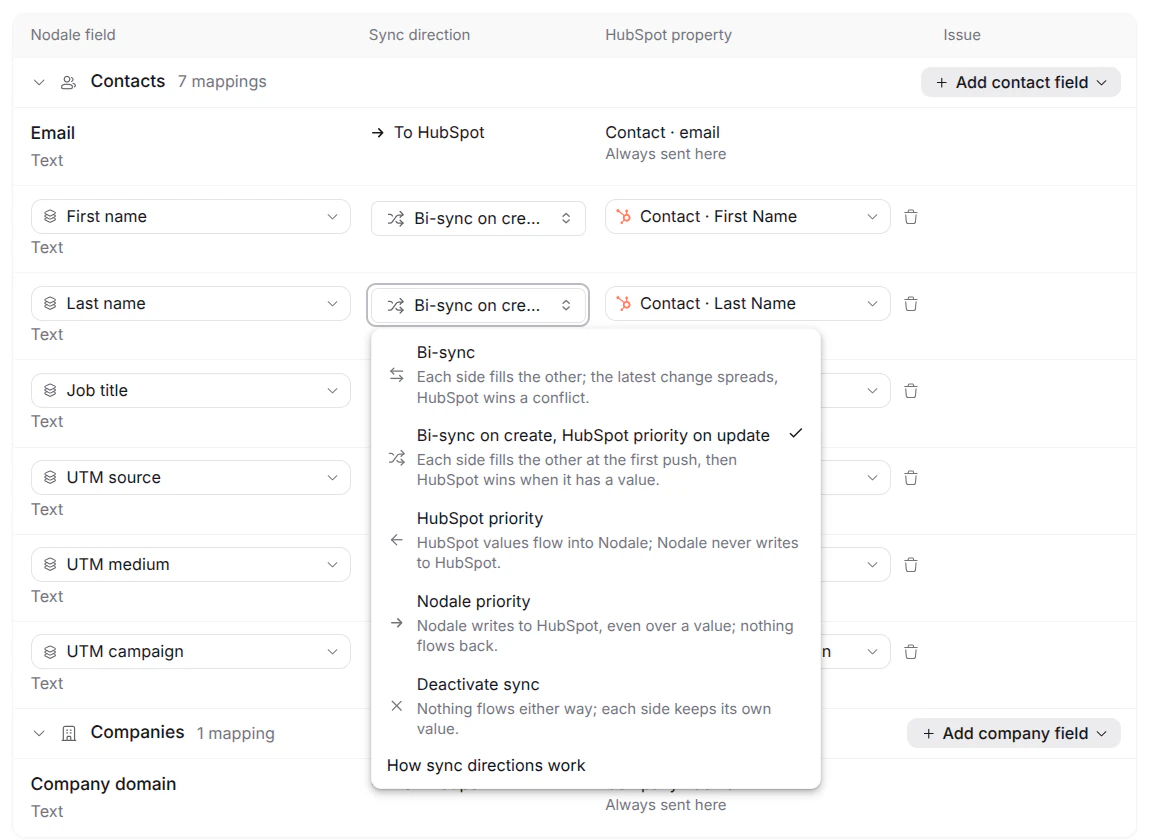
| Sync direction | First push of the lead | Later pushes | Both have a value |
|---|---|---|---|
| Bi-sync | Each side fills the other’s empty value; a filled HubSpot value wins | The side changed since the last sync propagates | First push: HubSpot wins. Then the side changed since the last sync; HubSpot if both changed |
| Bi-sync on create, HubSpot priority on update (default) | Each side fills the other’s empty value | HubSpot wins if it has a value, otherwise Nodale fills it | Each keeps its own at the first push, then HubSpot wins |
| HubSpot priority | The HubSpot value flows back into Nodale; Nodale never writes | Same | HubSpot wins |
| Nodale priority | Nodale writes, even over a value | Same; nothing flows back | Nodale wins |
| Deactivate sync | Nothing flows | Nothing flows | Each keeps its own |
For example, HubSpot has “Marketing Manager” as the job title, and the visitor tells the agent “Head of Growth”. With the default, HubSpot keeps “Marketing Manager”. With Nodale priority, HubSpot gets “Head of Growth”.
HubSpot sends values back into Nodale for the first name, last name, job title and qualification fields only. A read-only HubSpot property can only be in HubSpot priority or off.
The note on each conversation
Every conversation becomes one note in HubSpot, attached to the contact, its company and the contact’s open deals. It is written once and never updated. Its date is the start of the conversation.
Choose what goes in it in the Note tab. In order:
| Block | What it holds | Can be turned off |
|---|---|---|
| Summary | What the visitor came for and how the conversation went. | No |
| Next step | What the agent recommends doing next. | Yes |
| Qualification criteria | The values collected against your criteria. | Yes |
| Qualification framework | A short line per pillar of your framework (MEDDIC by default; SPICED, BANT, CHAMP or NEAT), written from the conversation. Not shown when you qualify with your own list. | Yes |
| Demos shown | Which demos played. | Yes |
| Pages visited | The pages seen before and during the conversation. | Yes |
| Open the lead in Nodale | A link to the lead. | No |
| Full transcript | The whole conversation, lines starting with “Visitor:” or “Agent:”. | Yes |
Every block is on by default. A note stays under HubSpot’s size limit: the transcript is shortened first (“Transcript shortened, the full conversation is in Nodale.”), then the last blocks are left out. The summary and the link always stay. Once a conversation’s content is no longer kept, its note goes without the transcript.
Deals
Nodale creates no deal and changes none: no amount, no stage, no deal property.
It attaches each conversation’s note to the contact’s open deals: the deals of the contact in your default pipeline (or, if it has no open stage, the first pipeline that has one) whose stage is not closed. A contact Nodale has just created has no deal yet, so its first note goes to the contact and the company only.
Book meetings with HubSpot Meetings
The agent can book meetings in your HubSpot meeting links, during the conversation. It uses the same HubSpot connection: there is nothing else to install. A portal connected before this feature shows To reconnect on its booking outcomes: reconnect HubSpot once to grant the meeting links scope.
- In Nodale, open Agents, then the Outcomes tab, and create a New outcome of type Meeting booking.
- Pick a Meeting type. Each HubSpot meeting link, personal or team, is listed once per duration, for example “HubSpot Meetings · Intro call · 30 min”.
- Link each required question of the meeting link to an element the agent collects. The name and the email are filled in automatically. A phone question is not supported: make it optional in HubSpot.
When the visitor has given a work email and the moment fits, the agent offers times in their time zone and language, and books the one they pick. HubSpot creates the meeting with the visitor’s name, email, time zone and answers, on the link’s own rules (hours, notice, who in the team is free). If the time was taken in the meantime, the agent offers new ones.
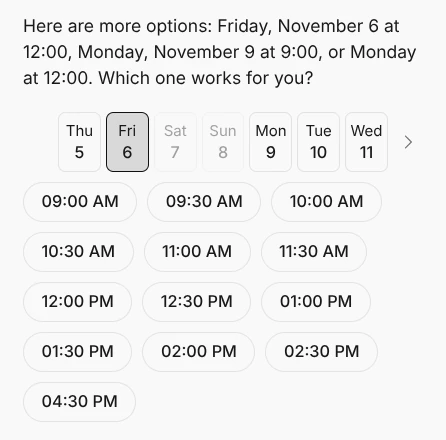
Nodale does not cancel or reschedule meetings: that happens in HubSpot.
Data and disconnection
- Nodale writes only the properties you mapped, the note, and the company property Nodale record ID.
- Disconnecting deletes nothing in HubSpot. Erasing a lead in Nodale deletes nothing in HubSpot either.
- Questions: support@nodale.ai.
Troubleshooting
| Message in Nodale | What happened |
|---|---|
| HubSpot was not connected: access was refused on the HubSpot page. | The consent page was closed or refused. |
| The HubSpot connection link expired or was already used. Start again from this page. | The link is valid for ten minutes, once. Click Connect HubSpot again. |
| HubSpot did not answer. Please try again in a few minutes. | HubSpot was unavailable. |
| HubSpot refused the connection. Please try again, or contact support if it keeps happening. | HubSpot rejected the request. |
| Couldn’t connect HubSpot. Please try again. | Any other failure. |